
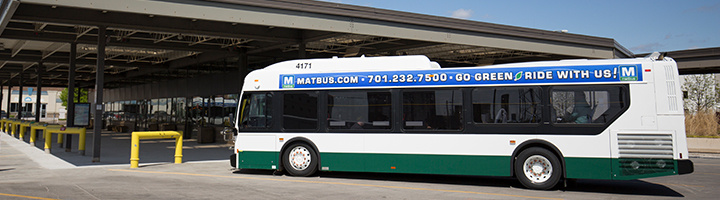
MATBUS Live Bus Tracker
To view the new live tracking in full screen, visit RideMATBUS.com.
Instructions
Desktop
- Select either Live Bus Map or Arrival Times. Live Bus Map will let you view the routes and bus stops plotted on a map, and Arrival Times will prompt you to choose from a list of stop names.
- Live Bus Map
In the menu on the right side of the screen, select the route you would like to view. The bus will be shown moving along the route, and it will look like an arrow with the bus number next to it. If the arrow is green, the bus is moving. If the arrow is red, the bus is stopped. - Clicking or hovering your cursor on the bus will show you: vehicle number, route name, update time, direction of travel, capacity of the bus, and the next bus stops the bus will reach.
- To view arrival times for your specific bus stop, zoom in on the map with Crtl+Scroll. Click on or hover over the bus stop (shown as a red circle with black outline). You will get a popup that shows the name of the bus stop, which routes use that bus stop, and how soon each of those routes will arrive.
- Arrival Times
Click the drop-down menu and select your bus route. - Choose a direction of travel. Each route will have a major stop or hub on each end, and you can select which you'd like to travel toward.
- Choose your bus stop. It will then show a section called Next Vehicles In, which displays how many minutes you'd wait for bus arrival. It will show the next two arrivals and the bus number.
Mobile Browser
- Nearby stops will show at the top of your screen if you have GPS enabled on your phone. Each of these stops will display how far away they are from your location, the route that serves the stop, the name of the stop, and number of minutes until bus arrival.
- You can also choose the exact bus stop by route. Select the route you would like to view.
- On the route screen, you can either select the map or the direction of travel.
- Map
The bus will be shown moving along the route, and it will look like an arrow with the bus number next to it. If the arrow is green, the bus is moving. If the arrow is red, the bus is stopped. - Clicking or hovering your cursor on the bus will show you: vehicle number, capacity of bus, direction of travel, update time, and the next bus stops the bus will reach.
- To view arrival times for your specific bus stop, zoom in on the map and select the bus stop (shown as a red circle with black outline). The information will show the name of the bus stop, vehicle numbers, and how soon each of them will arrive. It will generally show the next three arrivals of that route.
- From this bus stop detail section, you can also select Street View to see what the area of the bus stop looks like.
- Direction of Travel
Choose one of the two options for direction of travel. Each route will have a major stop or hub on each end, and you can select which you'd like to travel toward. - Choose your bus stop. It will then show how many minutes you'd wait for bus arrival. It will show the next three arrivals and the bus number.